Taking a screenshot on a Mac is a handy skill for everyone, whether you want to share information, save important details, or create tutorials. Fortunately, macOS provides multiple easy-to-use tools for capturing exactly what you need. You can take a screenshot of the entire screen, a selected area, or a specific window. Beyond still images, Mac also allows you to record your screen in video format using built-in features, making it ideal for presentations, demos, or troubleshooting.
With several methods available, each designed for convenience and efficiency, capturing your screen has never been easier. In this guide, we’ll walk you through every method step by step, so you can master screenshots and screen recordings on your Mac in 2025 with ease.
Read More: Installing Steam on a Chromebook in 2025: A Complete Step-by-Step Guide
How to Take Screenshot on Mac Using Keyboard Shortcuts
One of the fastest and most common ways to take a screenshot on a Mac is by using keyboard shortcuts. These shortcuts are simple, quick, and work on every Mac. By default, screenshots are saved on the desktop in image form, but you can also customize the save location. Let’s explore the different shortcuts and their functions step by step.
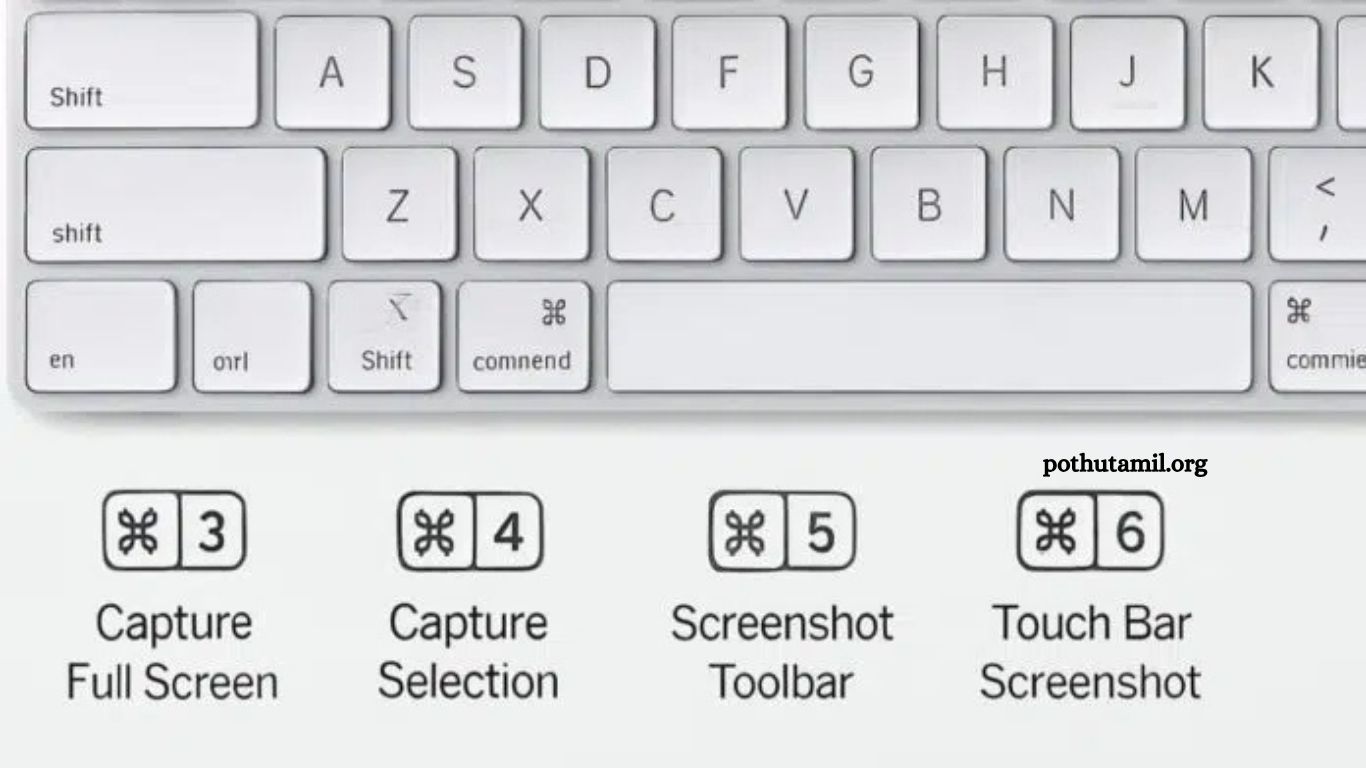
1. Capture the Entire Screen – Command + Shift + 3
Pressing Command + Shift + 3 captures the entire screen instantly. The screenshot is automatically saved to your desktop. This method is useful when you need everything on your screen at once and saves time compared to capturing multiple areas.
2. Capture a Selected Portion – Command + Shift + 4
Use Command + Shift + 4 to capture only a specific area. Your cursor turns into a crosshair. Drag to select the portion you want, then release the mouse button to take the screenshot. This is ideal for capturing details clearly.
- Capture a Window: After pressing
Command + Shift + 4, press the spacebar. The cursor changes to a camera icon. Hover over a window and click to capture it with a white border and drop shadow. - Move Selection: Hold spacebar after selecting an area to move the selection without resizing it.
- Adjust Edges: Hold Shift to lock sides except the bottom edge. Move the mouse to adjust the bottom line, then press Shift again to adjust the right edge.
3. Screenshot Control Panel – Command + Shift + 5
Introduced in macOS Mojave (2018), this shortcut opens the screenshot toolbar at the bottom of the screen. It offers flexible options:
- Capture the full screen, a specific window, or a selected portion.
- Record your screen (full or partial).
- Choose the save location: Desktop, Documents, Clipboard, Mail, Messages, Preview, or a custom folder.
- Set a timer (5 or 10 seconds) for capturing menus or hidden actions.
- Use the floating thumbnail preview to edit screenshots quickly with Markup.
4. Capture Touch Bar – Command + Shift + 6
For older MacBook Pro models with a Touch Bar, Command + Shift + 6 captures exactly what appears on the Touch Bar. This produces a long, thin image of the bar.
5. Copy to Clipboard
Add the Control key to any shortcut to copy the screenshot directly to the clipboard. Example: Command + Control + Shift + 3 copies the full screen. Then paste anywhere using Command + V. This saves storage space when you don’t need to save files.
6. Customize Shortcuts
You can personalize shortcuts in system settings:
- Open Apple Menu > System Settings > Keyboard > Keyboard Shortcuts > Screenshots.
- Double-click a shortcut to edit it, type your preferred key combination, and click Done.
- Reset to default anytime if needed.
Keyboard shortcuts provide a fast and flexible way to capture screenshots, giving you complete control over what and how you capture on your Mac.
How to Take Screenshot on Mac Using the Screenshot App
Macs come with a dedicated Screenshot app pre-installed, offering more flexibility and features than keyboard shortcuts. You can easily access it through the Applications folder: open Applications > Utilities > Screenshot.
When you launch the app, a full toolbar appears, providing buttons for capturing:
- Entire screen
- Selected portion
- Single window
Each screenshot is saved automatically to your chosen location.
The Screenshot app also allows screen recording, either for the full screen or a selected area. Videos are saved as .MOV files by default, and you can even record audio from your microphone while recording the screen.
Click Options for additional controls:
- Choose a save location for screenshots and recordings
- Set a timer delay (helpful for capturing menus or temporary content)
- Enable/disable the floating thumbnail preview
- Show or hide the pointer in screenshots
If the toolbar blocks content, you can drag its left edge and reposition it anywhere on the screen, ensuring smooth captures without obstruction.
While the built-in Screenshot app is powerful, some users prefer third-party apps for extra features. Zappy, developed by Zapier, is a popular option for capturing screenshots, recording screens, annotating images, and quickly sharing files online—ideal for teams or collaborative work.
How to Take Screenshot on Mac and Edit Screenshots
Capturing a screenshot is just the first step—editing it can make your images clearer, more informative, and visually appealing. macOS provides multiple built-in tools for quick and advanced editing after taking a screenshot.
When you capture a screenshot, a floating thumbnail appears in the bottom-right corner. Clicking this thumbnail opens Markup View, allowing you to:
- Crop, rotate, or annotate the screenshot
- Use a pencil tool to draw or highlight key areas
- Add shapes like arrows, boxes, or circles
- Insert text with custom fonts, colors, sizes, and positions
- Move or resize added elements freely
After editing, you can save the screenshot to Desktop or Documents, or share it directly via Mail, Messages, Preview, or Photos. Right-clicking the thumbnail gives additional options, like showing the file in Finder, deleting it, or opening it in Markup for more edits.
For advanced editing, use the Preview app:
- Adjust Size to resize the image freely
- Adjust Color to modify brightness, contrast, exposure, and saturation
- Use Annotate tools to highlight text, insert shapes, or underline important details
- Export screenshots in JPEG, PNG, or PDF formats
These tools make screenshots versatile for students, professionals, and designers, helping to communicate ideas clearly and efficiently while saving time.
Frequently Asked Questions
How do I take a screenshot on a Mac?
You can use keyboard shortcuts (Command + Shift + 3 for full screen, Command + Shift + 4 for a selected area, or Command + Shift + 5 for the screenshot panel) or the built-in Screenshot app from Applications > Utilities.
Where are screenshots saved on a Mac?
By default, screenshots are saved on the Desktop. You can change the location in the Screenshot app under Options or via keyboard shortcut settings.
Can I edit screenshots on a Mac?
Yes. After capturing a screenshot, click the floating thumbnail to open Markup. You can crop, annotate, add text, shapes, or highlight important areas. Preview app also offers advanced editing and export options.
How do I capture a specific window?
Press Command + Shift + 4 and then spacebar. The cursor changes to a camera icon—click the window to capture it with a white border and shadow.
Can I record my screen instead of taking a screenshot?
Yes. Use Command + Shift + 5 to open the screenshot panel. You can record the full screen or a selected portion. Audio recording from the microphone is also supported.
How do I copy a screenshot to the clipboard?
Add the Control key to any shortcut. For example, Command + Control + Shift + 3 copies the full screen to the clipboard, ready to paste with Command + V.
Can I customize screenshot shortcuts?
Yes. Go to Apple Menu > System Settings > Keyboard > Keyboard Shortcuts > Screenshots. You can assign new key combinations or reset to default anytime.
Conclusion
Taking screenshots on a Mac is simple, versatile, and powerful thanks to built-in keyboard shortcuts, the Screenshot app, and editing tools. Whether you need to capture the full screen, a selected area, a specific window, or even the Touch Bar, macOS provides options for every scenario. With features like screen recording, floating thumbnails, Markup, and advanced Preview editing, you can enhance, annotate, and share your screenshots easily. Customizable shortcuts and third-party apps like Zappy further improve productivity and workflow.