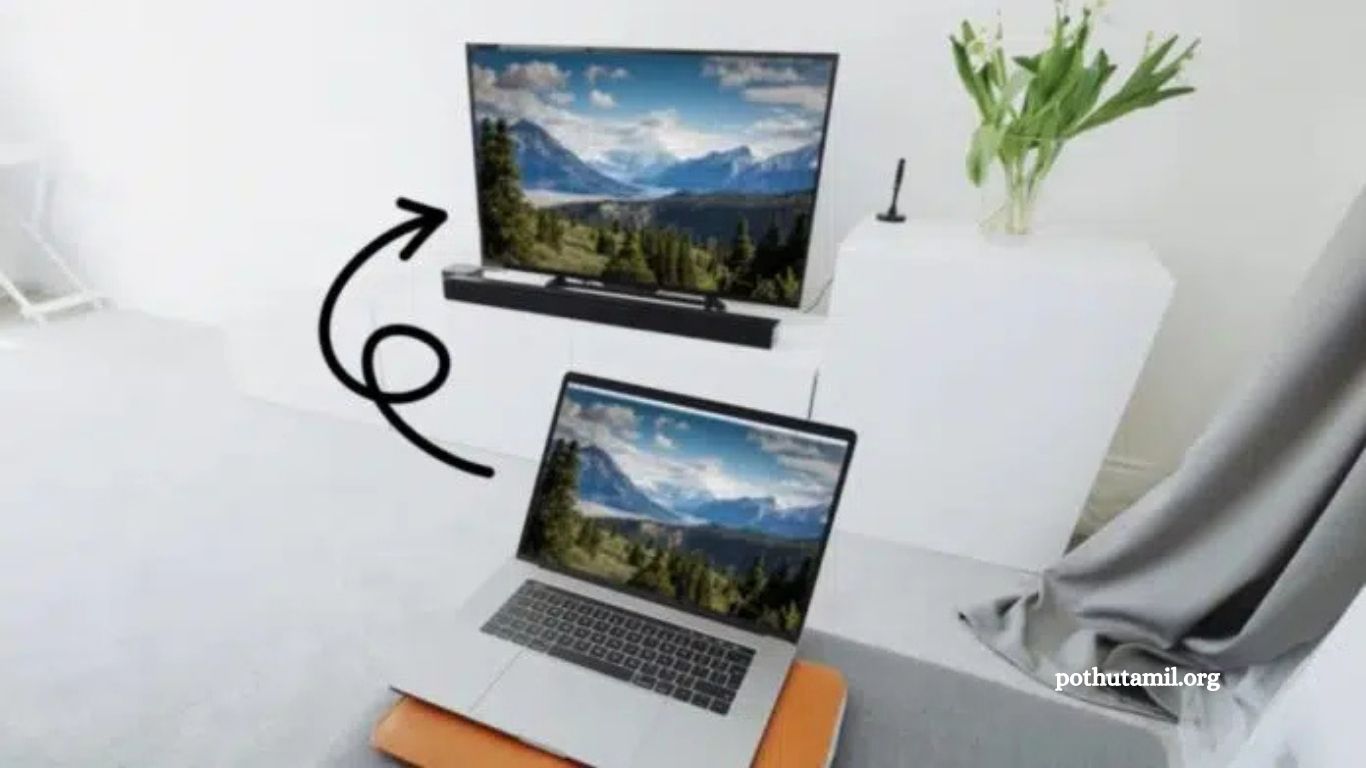
Connecting your laptop to your TV is one of the easiest ways to upgrade your viewing and productivity experience. A small laptop screen can feel uncomfortable during long work sessions, movie nights, or casual browsing. By displaying everything on your television, you instantly enjoy a larger, clearer view that makes entertainment more immersive and tasks more convenient.
Whether you want to watch movies, play games, share photos, or deliver a presentation, using your TV as a screen can make everything smoother and more enjoyable. The best part is that connecting your laptop and TV is quick and simple—whether you choose HDMI, wireless screen mirroring, or other display options. With just a few steps, you can turn your TV into a powerful extension of your laptop.
Read More: How to Screenshot on a Mac in 2025: Top Methods & Tips
Connect Your Laptop to Your TV with an HDMI Cable
Using an HDMI cable is the simplest and most reliable way to connect your laptop to your TV. Nearly all modern TVs include at least one HDMI input, and most laptops come with an HDMI port for seamless video and audio transmission.
Start by plugging one end of the HDMI cable into your laptop and the other into your TV. Then use your TV remote to switch the input source to the correct HDMI channel.
Some laptops include a full-size HDMI port, allowing you to use a standard HDMI cable. Others may have mini-HDMI or micro-HDMI ports, which require the appropriate adapters or specialized cables.
Certain laptop models use DisplayPort or Mini DisplayPort instead of HDMI. In this case, a DisplayPort-to-HDMI adapter will work perfectly. Many newer laptops—such as recent MacBooks and Microsoft Surface devices—use USB-C or Thunderbolt ports for video output. A USB-C to HDMI adapter solves this easily, and Thunderbolt 3/4 devices use the same connector. Always check your laptop’s specifications before purchasing any adapter.
Older laptops may still use VGA. Some older TVs also include VGA, but this connection carries video only—you’ll need a separate audio cable for sound. HDMI remains the best option because it delivers both high-quality audio and video through a single cable.
Once connected, adjust your display settings for best results. On Windows, press Windows + P and choose Duplicate (mirror your screen) or Extend (use the TV as a second display). On Mac, go to System Preferences > Displays and enable Mirror Displays if needed.
If text appears blurry on the TV, adjust your laptop’s resolution to match your TV. Also check your TV’s overscan settings—disabling overscan prevents the edges of the screen from being cut off. Gamers should turn on Game Mode for reduced input lag.
Connect Your Laptop to Your TV Wirelessly
You can also connect your laptop to your TV wirelessly, which eliminates cables and gives you more flexibility. Most modern smart TVs support built-in screen mirroring, while older models can still use wireless display devices such as Chromecast, Roku, or Amazon Fire TV. These devices make it easy to share your laptop screen without dealing with tangled wires.
Windows laptops often include Miracast for wireless screen sharing. Open the Action Center, click Connect, and select your TV—just make sure both devices are on the same Wi-Fi network. Within seconds, your laptop display appears on your TV, provided both devices support Miracast.
MacBooks use Apple AirPlay for wireless mirroring. Simply click the AirPlay icon on the menu bar and select your AirPlay-compatible TV or Apple TV 4K. Your Mac screen will instantly appear on the larger display. Many newer Samsung, Sony, and LG TVs include AirPlay support by default.
Chromebooks also support wireless casting using Google’s technology. With a Chromecast or Chromecast Ultra, you can mirror your entire screen. Devices like Google TV and Nvidia Shield offer similar functionality. Many newer smart TVs also include Chromecast Built-in. Using the Chrome browser on any laptop, you can cast a specific browser tab by selecting Cast.
Some apps—such as YouTube and Netflix—allow direct casting from within the app. This sends only the video content to the TV, not your entire screen. It’s a convenient option when you only need to watch media.
Wireless screen mirroring works well for home and office use. You can present documents, slides, or photos during meetings, or enjoy movies and streaming content with ease. It provides more freedom and avoids the hassle of managing cables.
Settings and Display Tips
Once you connect your laptop to your TV, adjusting a few settings will help optimize picture and sound quality. Start by matching your laptop’s resolution to your TV’s supported resolution—whether Full HD or 4K UHD—to ensure a sharp and clear display. You can also adjust text scaling or zoom levels on both Windows and Mac to make on-screen text easier to read.
Fine-tune your TV’s display settings for the best experience. Increase brightness or contrast based on your preferences, and turn off the TV’s sharpness filter for a more natural image. Make sure overscan is disabled so the entire screen displays correctly. Most TVs include picture size or scaling controls in their settings menu.
Switch between Duplicate and Extend display modes depending on your needs. Duplicate is ideal for sharing your screen with others, while Extend allows your laptop and TV to show different content. This is helpful for multitasking or professional presentations. Gamers may prefer Duplicate mode for smoother gameplay.
For audio, confirm that your laptop is sending sound to your TV speakers. On Windows, click the sound icon and choose your TV as the output device. On Mac, go to System Preferences > Sound and select your TV. You can also connect Bluetooth speakers to the laptop if you want upgraded sound.
A properly configured laptop-to-TV setup enhances entertainment and productivity. Stream Netflix, Amazon Prime, Disney Hotstar, or YouTube in high definition for a theater-like experience at home. Share travel photos, family videos, or presentations easily on a big screen. Gamers can enjoy immersive gameplay on a larger display—just enable Game Mode on the TV to reduce input lag and pair Xbox or PlayStation controllers wirelessly with the laptop.
Troubleshooting Problems
Sometimes issues arise when connecting your laptop to your TV. Common problems include a black screen, distorted picture, or missing sound. Before trying anything else, restart both your laptop and TV. A simple reboot often resolves minor software glitches.
For wireless connection problems, make sure both devices are on the same Wi-Fi network. Verify that Miracast, Wi-Fi Direct, or AirPlay features are enabled on your laptop and TV. If the laptop fails to connect, update your wireless drivers. It also helps to update your TV’s firmware to fix compatibility or connection bugs.
For HDMI issues, inspect the cable and ports for damage. A faulty HDMI cable can prevent signals from reaching the TV, so try another cable if possible. Also ensure the TV is set to the correct HDMI input; choosing the wrong input will result in a blank screen.
If text appears blurry or difficult to read, adjust display resolution and scaling. Set your laptop’s resolution to match your TV’s supported resolution. If the screen edges are cut off, disable overscan in your TV’s settings. Correct scaling on the laptop also improves clarity.
Some older TVs may not support modern connection protocols. In such cases, using an external casting device like Chromecast is an affordable and effective solution. These devices work with almost any TV and provide smooth wireless mirroring.
If nothing resolves the problem, refer to your laptop or TV’s official manuals or online support resources. With the right steps and a bit of patience, most connection issues can be easily fixed.
Frequently Asked Questions
Why won’t my laptop connect to my TV?
This usually happens due to incorrect input selection, faulty cables, outdated drivers, or unsupported wireless protocols. Check the HDMI port, Wi-Fi connection, and display settings.
Can I connect my laptop to my TV without HDMI?
Yes. You can use wireless options like Miracast, AirPlay, and Chromecast, or use adapters such as USB-C to HDMI, DisplayPort to HDMI, or VGA for older devices.
Why is there no sound coming from my TV?
Make sure your laptop’s audio output is set to the TV. On Windows, select the TV from the sound output menu; on Mac, choose the TV under Sound settings.
Why is the picture blurry on my TV?
Blurriness results from a resolution mismatch. Set your laptop’s resolution to match your TV’s supported resolution (e.g., 1080p or 4K). Also disable overscan on the TV.
How do I mirror vs. extend my display?
On Windows, press Windows + P and choose Duplicate to mirror or Extend for a dual-screen setup. On Mac, go to System Preferences > Displays.
Do smart TVs support wireless laptop connections?
Most modern smart TVs support wireless mirroring through Miracast, AirPlay, or Chromecast Built-in. Older TVs may require external casting devices.
Can I use my TV as a gaming monitor?
Yes. Connect your laptop via HDMI or wireless casting. Enable Game Mode on the TV to reduce input lag for smoother gameplay.
Conclusion
Connecting your laptop to your TV is one of the easiest ways to upgrade your entertainment, productivity, and gaming experience. Whether you choose a reliable HDMI cable or prefer the convenience of wireless mirroring, modern devices make the process simple and accessible. With the right display settings, matching resolutions, and proper audio output, you can enjoy sharper visuals, clearer sound, and a smoother overall setup.